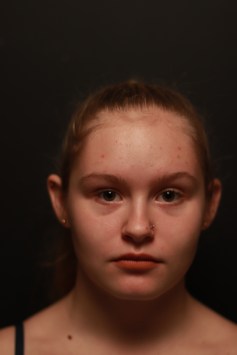
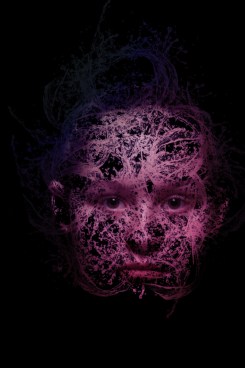
How I create my layer mask:
- I opened up my image into photoshop.
- then I created a new layer.
- I selected the paint bucket tool so that I could change the foreground of the new layer to black and then drop the colour black on the new layer so its no longer transparent.
- whilst my layer is selected I clicked the layer mask button at the bottom of the layers panel.
- I then used a brush to paint into the new layer mask, this conceals areas of the black layer allowing the image to show through.
- I selected the brush tool from the toolbar and then I selected a brush present from the menu. I expanded the size of the bush using the [ ] keys on the keyboard to get the side brush I wanted.
- with my layer mask selected I went to image adjustments and changed the levels and correct the image.
- to create the watery effect to my image I added a new layer.
- then I went to my gradient tool.
- when selected my gradient tool I edited my gradient to how I preferred.
- the gradient editor comes up and I picked the tones of the colours so that I could blend them together.
- I dragged the tool across the image, however I wanted the gradient to be displayed.
- with my new layer that has been selected, the blending mode used colour of from my layer on all underneath layers.
- then I selected the colour tone to a blend mode by defining the colour blend mode from the drop down menu.
 Level 3 Vocational Photography Meagan Jones